

If you’ve ever managed a sales agency, rep team, or manufacturing territory, you know that commission structures are rarely “one size fits all.”
One manufacturer pays a baseline 5.00%, but their specialty line pays 4.00%. Meanwhile, your key account in Oregon negotiated a custom rate of 4.50%, and two reps are splitting the account 60/40.
Tracking all those exceptions in spreadsheets usually leads to late-night calculations, copy-paste errors, and endless rep questions when monthly statements go out.
That’s exactly why we built Commission Rules in MRSware.
In this post, we’ll walk through how Commission Rules work, how exceptions are handled seamlessly during data imports, and some of the smart little features under the hood that make managing rates effortless.
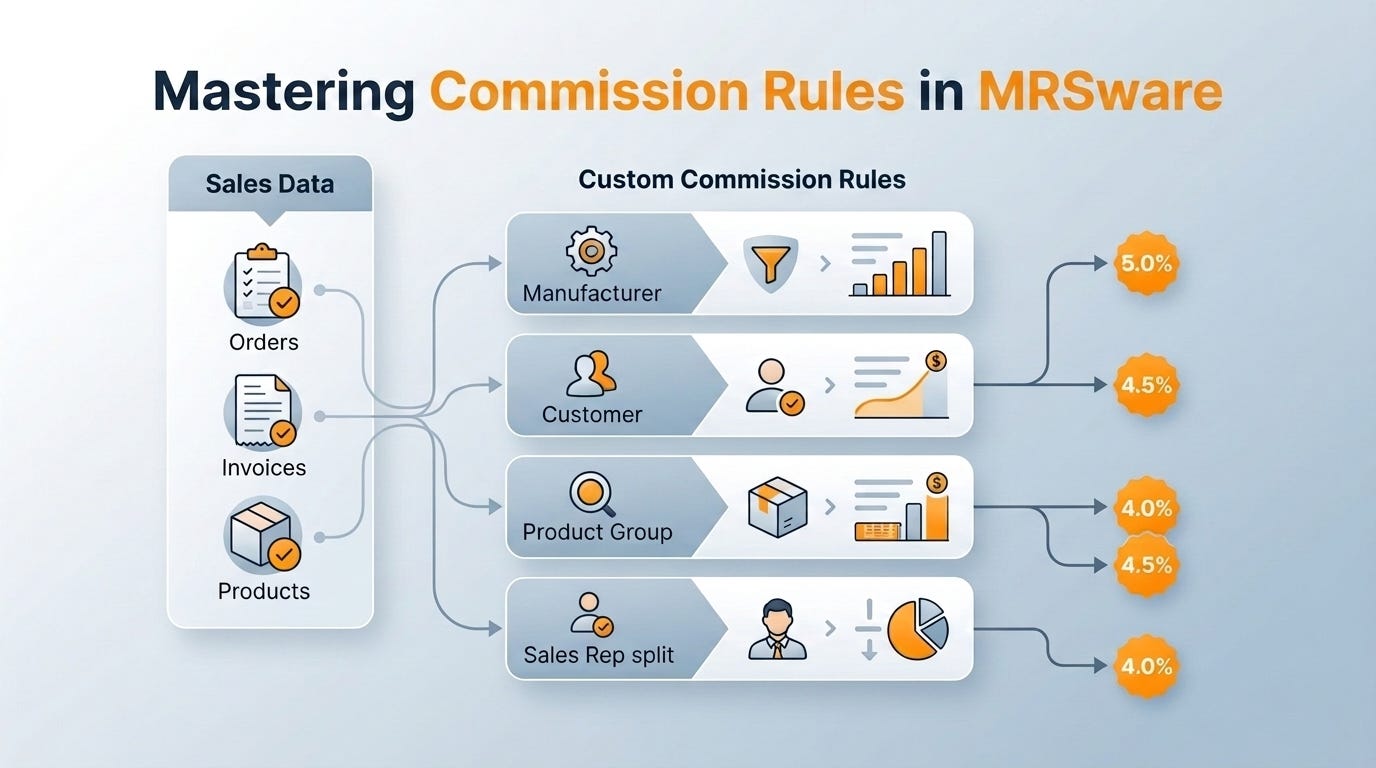
What Are Commission Rules?
At its core, Commission Rules act as your automated rate engine. When you import order reports, shipping sheets, or manufacturer commission statements, MRSware evaluates each line item against your rules and applies the exact right percentage automatically.
You can set commission rules based on any combination of criteria:
Manufacturer: Establish your baseline rate per manufacturer.
Customer: Set customer-specific override rates for special accounts.
Product Group / Item Type: Adjust rates for specific product categories (e.g., equipment vs. accessories).
Catalog Item Number: Target specific high-margin or promotional SKUs.
Sales Rep & Split Rate: Assign reps to accounts or territories and split commission percentages between co-reps.
How Rules & Exceptions Work (A Real-World Example)
The real power of Commission Rules comes from stacking criteria so that specific exceptions override default rates.
Let’s look at how Heavenmade Safety Co. might configure their rules in MRSware:
The Default Rate:
Rule: Manufacturer = Heavenmade Safety Co.
Commission Rate:
5.00%Every standard order for Heavenmade gets 5% by default.
The Category Exception:
Rule: Manufacturer = Heavenmade Safety Co. + Product Group = Safety Products
Commission Rate:
4.00%Safety Products carry a lower standard rate of 4%.
The Customer Exception:
Rule: Manufacturer = Heavenmade Safety Co. + Product Group = Safety Products + Customer = Alpine Paper - Walterville
Commission Rate:
4.50%When Alpine Paper buys Safety Products, an negotiated 4.5% rate applies.
When sales data rolls in via order entry or import, MRSware automatically picks up the most specific matching rule. No manual rate lookups, no math required.
Smart Features Under the Hood in MRSware
Behind the grid, we’ve added several smart conveniences to make rule management smooth and foolproof:
1. Zero-Friction Rate Typing (No 500% Mistakes!)
Ever typed 5 intending to enter 5%, only to find out the system saved it as 500% (5.00)? In MRSware, our smart rate rule automatically converts numbers greater than 1.0 into percentages. Type 5 or 4.5, and the system instantly turns it into 5.00% or 4.50%.
2. Intelligent Upserting (No Duplicate Errors)
If you add a rule for a Manufacturer and Customer that already exists, MRSware doesn’t throw a generic database error or create a duplicate row. Our business rules perform a smart upsert—updating the existing rate while keeping your clean data structure intact.
3. Integrated Sales & AI Smart Import
Whether you are using standard CSV imports or leveraging our AI Smart Import to paste raw text and invoice snippets directly into eyondcrm, Commission Rules are automatically triggered during processing. The system resolves the correct customer, line item, and manufacturer, then stamps the exact commission rate immediately.
4. Reassignment on Merges
Consolidating duplicate contacts or customers? When you merge manufacturers, customers, or sales reps, MRSware automatically updates and reassigns all associated Commission Rule records. Your historical and default rates stay perfectly aligned without broken links.
Getting Started with Commission Rules
Ready to clean up your commission workflow?
Navigate to Commission Rules under your administration menu in eyondcrm.
Click New to start with your manufacturer-wide default rates.
Layer in customer or product overrides as needed.
Run your next Sales Import and watch the rates compute automatically!
Have questions about setting up complex multi-rep splits or tiered rates for your agency? Leave a comment below or reach out to our team—we’re always happy to help you get your rules tuned to perfection!
Enjoying these feature deep-dives? Don’t forget to subscribe to the EYOND Substack for the latest tips, feature updates, and documentation.