

MRSware’s AI Smart Import streamlines invoice data entry by letting users paste spreadsheet data directly into the Sales Import screen, where the AI automatically parses, maps, and populates all relevant fields — no manual typing or field-matching required.
Accepts raw pivot table output (e.g., from Google Sheets) summarizing sales, commissions, and commission rates by distributor and state
AI Smart Import is launched from the Sales Import screen; users paste data and can include plain-language instructions (e.g., vendor name, invoice date, unique numbering)
The AI processes the data in ~10 seconds, auto-looks up existing customers, and fills the import screen for review
Before finalizing, users can assign missing Sales Reps, link to a Commission Payment, or make any adjustments
Records are committed with a single click (Update Records), with a Batch Summary screen available for a final audit
A real-world example: Essendant (a large wholesale distributor) sends out a 28652 row spreadsheet of trace sales data for our territory. It has Sold To data (the Distributor) and Ship To information (the End User), City, State, Zip, and even Product categories and individual Item descriptions. Want to capture the whole thing? Feed it to the Sales Importer and watch it grab all those details and fill in all the related pages in the system.
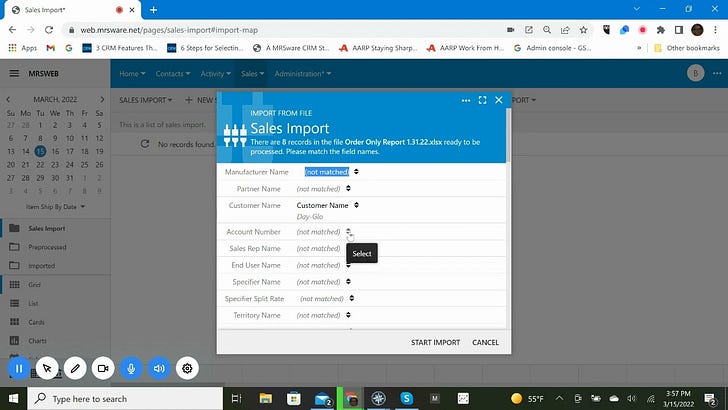
And that feature is super-cool, and super-detailed. But that’s not what we are into today. Today, I just want to capture the totals that are coming into the territory for each of the Customer entries (no End Users for this one).
Step 1: Open the spreadsheet in your favorite tool. In Google Sheets, I use the Insert Pivot Table function and tell it to total Sales, Commissions, and average the Commission Rate for each Distributor, and to include the Ship To State, so that I can credit the correct Sales Rep for the sale. The result looks like this:
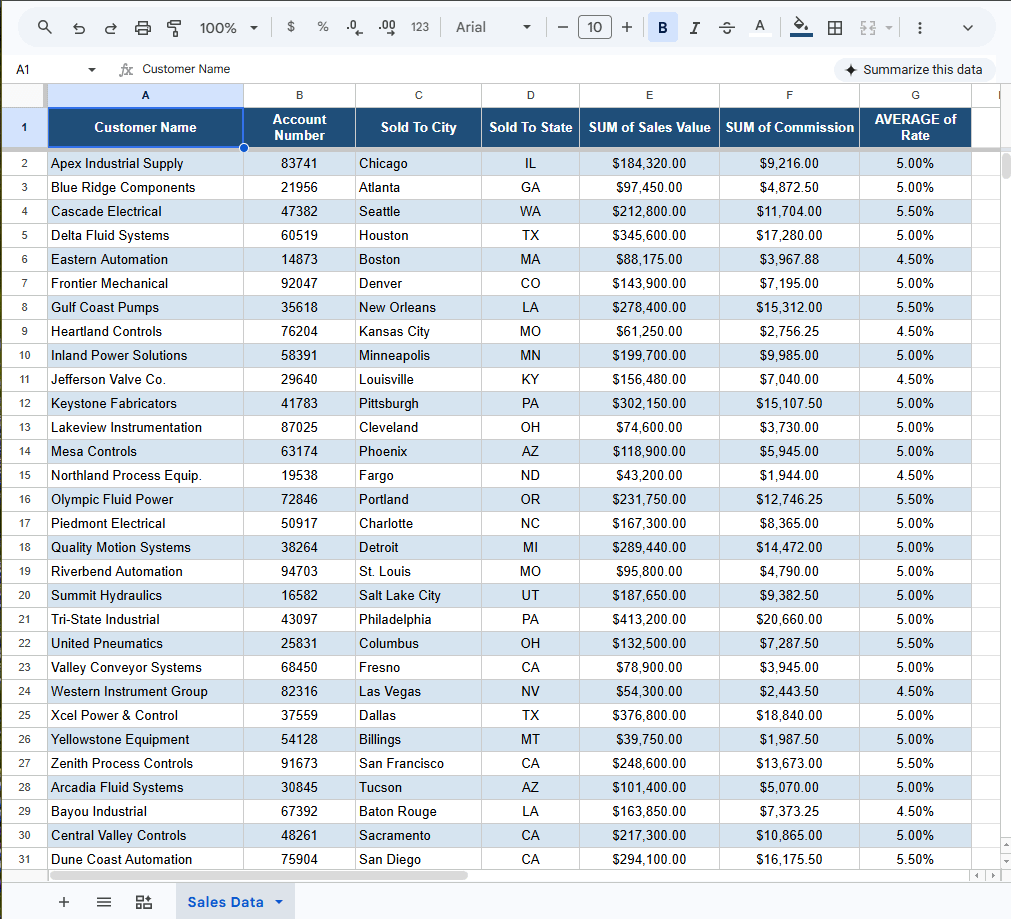
Now what? Quick Add to type in each entry. Sales Import is another option to get them all at once. Or, what I want to show today — AI Smart Import.
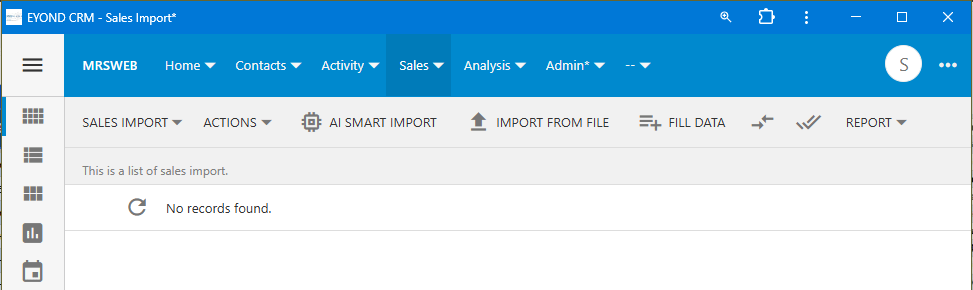
Step 2: Go to the Sales Import screen, and click on AI SMART IMPORT.
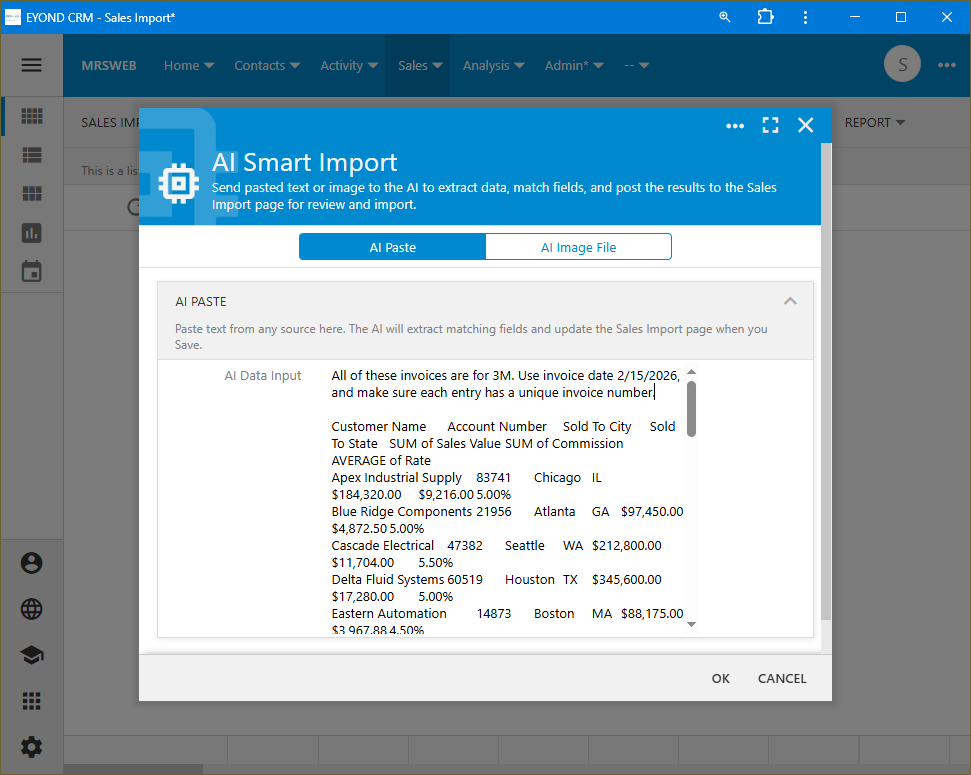
Paste in the data, click OK, and the AI finds the entries and adds everything to the import screen for review… I actually just told the AI what I was giving it and what I wanted too, “All of these invoices are for 3M. Use invoice date 2/15/2026, and make sure each entry has a unique invoice number.”. I could have also used the Fill Data function after to do the same thing, but if the AI can just do it for me, why not?
I hit Ok. The AI chews on it for about 10 seconds (longer if you are giving a massive amount of data), and fills in the import screen for me. No field matching required, existing customers are looked up and filled in. Now all I need to do is take a look at the entries and totals to make sure I am happy with what I see, and press Update Records to make those Invoices.
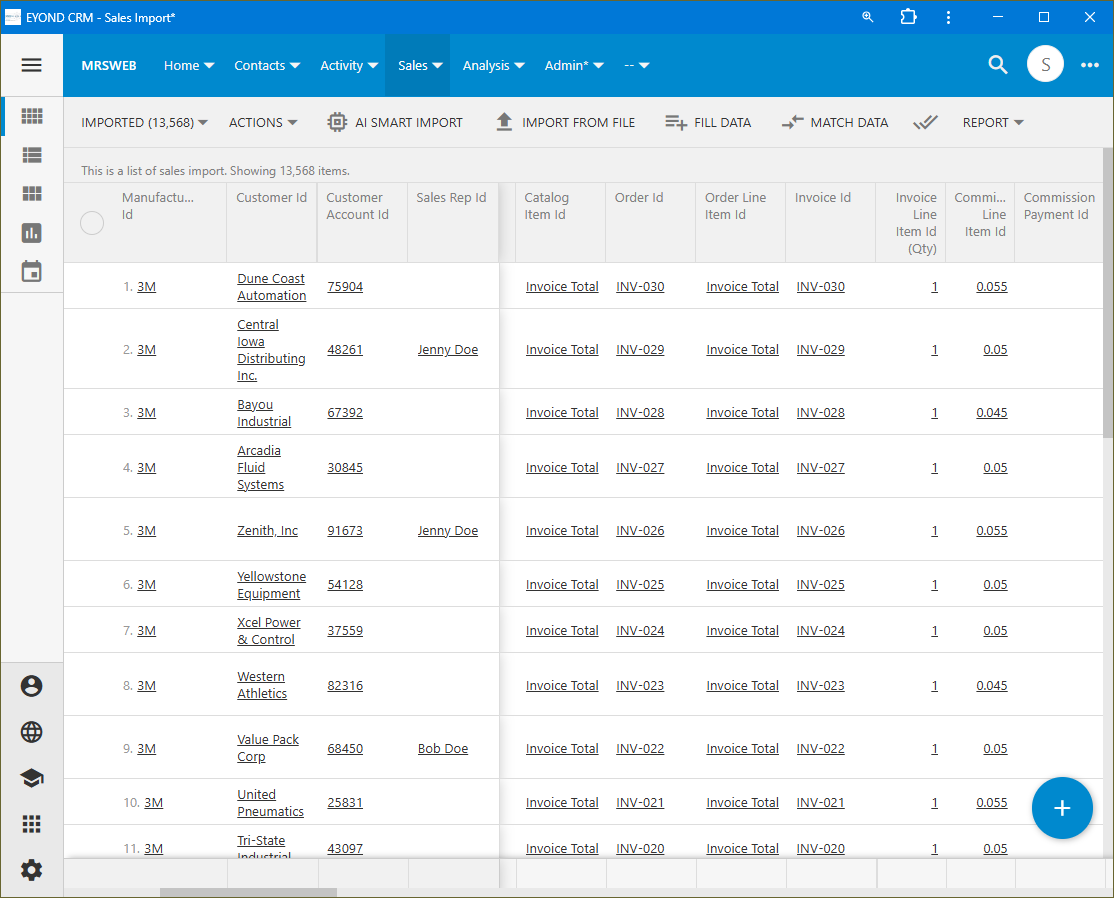
Before I press the Go button (Update Records), I could take the opportunity to assign some missing Sales Reps, add this report to a Commission Payment, or tweak anything in particular I didn’t like. However, really the job is done when I see those matching entries fill in. After import, I’ll just do a double-check in the Batch Summary screen to triple-check my work.
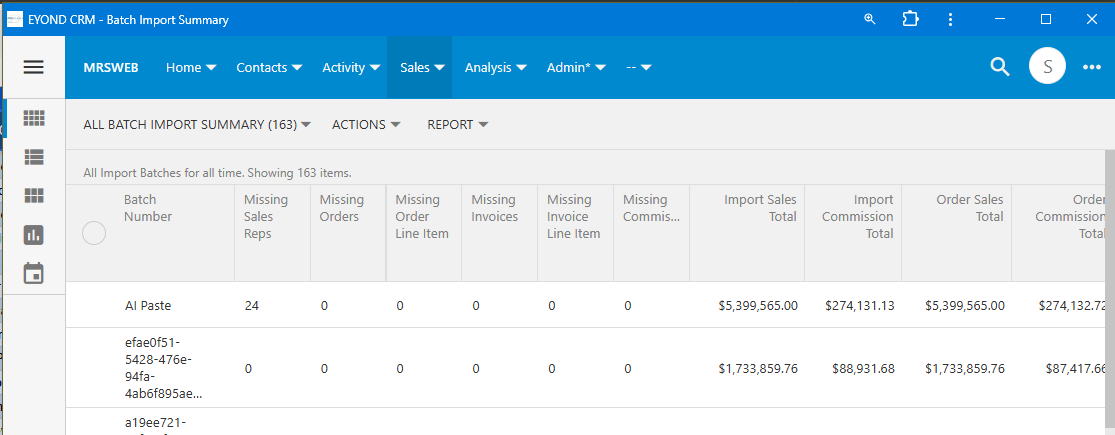
I see you “Missing Sales Reps”. I’ll do that next…
Amazing!