You may have company entries in your system that are duplicated, either from an error in an imported file or from a typing error. Duplicate entries can cause confusion when assigning catalog items, tracking orders, or managing customer accounts. You can now resolve these conflicts easily using the Merge Duplicates action.
Instead of manually reassigning each record, the Merge Duplicate process automatically moves all associated data—including Orders, Invoices, Inventory, and Web Sales—to the company entry you want to keep.
Why use Merge Duplicates?
In many cases, you won’t be able to simply delete a duplicate entry because it is already linked to active business records. The Merge Duplicate process handles these dependencies for you, ensuring that your data remains consistent and your history is preserved.
Robust and Intelligent Merging
The new Company Merge tool is built to handle complex data relationships:
Catalog Item Collision: If both companies have the same product (Item Number), the system will automatically point all orders to the target company’s product and merge any missing descriptions or notes.
Customer Account Collision: If there are conflicting account numbers for the same customer, the system will append “-merged” to the source account to ensure no data is lost.
Field Merging: If the company you are keeping is missing information (like a phone number or email) that the duplicate has, the system will automatically fill in those blanks.
Permissions
Only users with Owner or Administrator permissions can perform a Merge Duplicate.
How to merge duplicate companies:
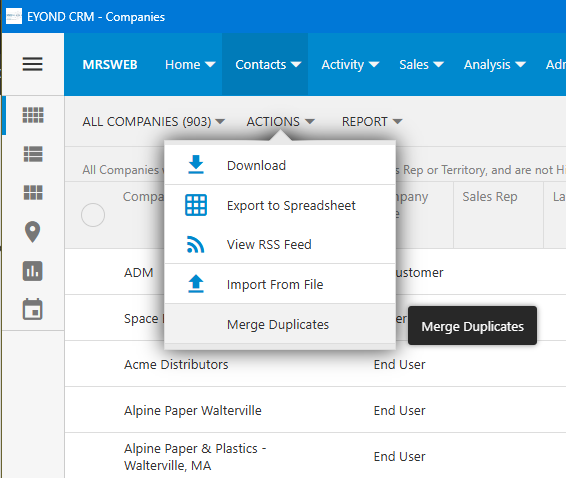
Go to the menu bar and click or tap Contacts -> Companies.
Click or tap the Actions menu on the action bar.
Select Merge Duplicates.
When the merge dialog opens:
Select the Source Company (the entry you want to remove).
Select the Target Company (the entry you want to keep).
Review the confirmation message and click OK.
The merge is complete. The system will automatically reassign all linked records and mark the source company as “deleted” to remove it from your active lists.
TIP
This process is much safer and faster than manual cleanup, as it ensures that triggers and business rules are satisfied throughout the reassignment.